Link your Google Maps account with Zoho CRM. This extension will help you search for an address through Google and link it to an address field in the CRM for the Accounts, Contacts, Leads, Vendors, Quotes, Sales Orders, Purchase Orders, and Invoices modules. You can launch the Google Maps extension by clicking on the respective modules while creating or editing records.
Key Features:
- Available in all Zoho CRM modules with address information
- User Friendly
- Saves time entering address field data
- Find and auto-fill addresses when creating and editing pages
Installation Steps
Step One
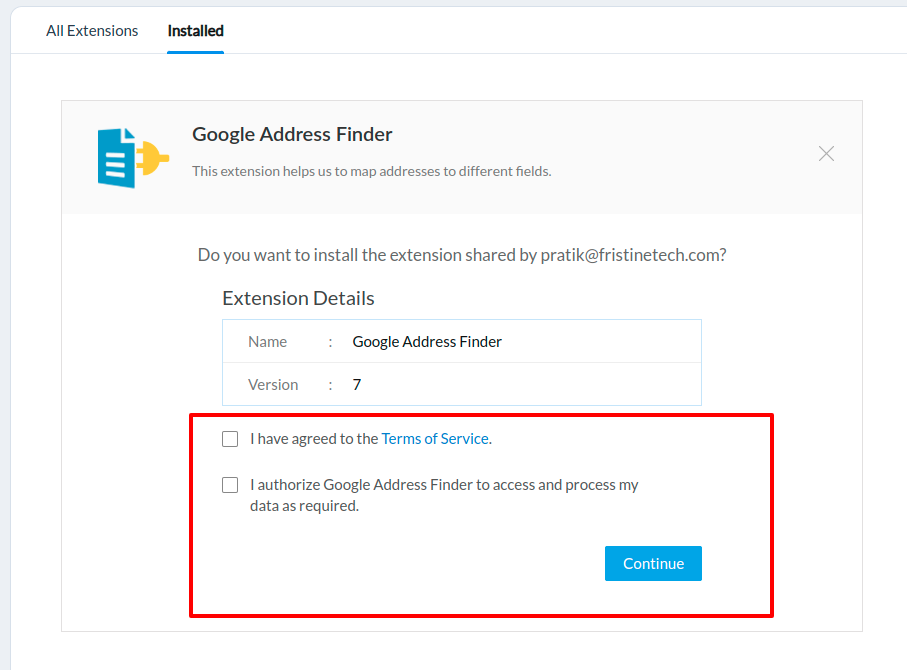
Open the installed “Google Address Finder” extension, you will get two options-
- I have agreed to the terms of services
- I authorize Google Address Finder to access and process my data as required.
Then click on “Continue.”
Step Two
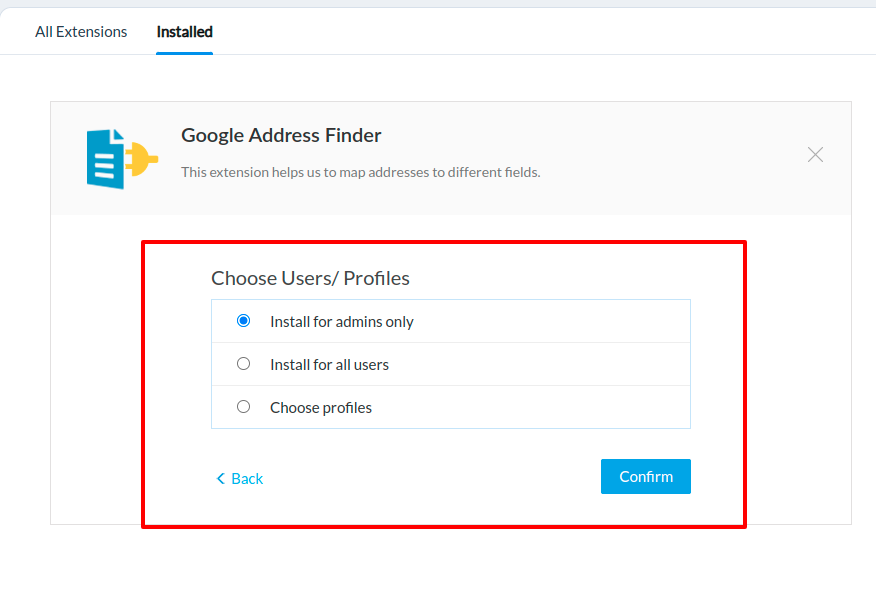
Next, you need to “Choose Users/Profiles.”
Select the appropriate option out of these three-
Then hit “Confirm.”
Step Three
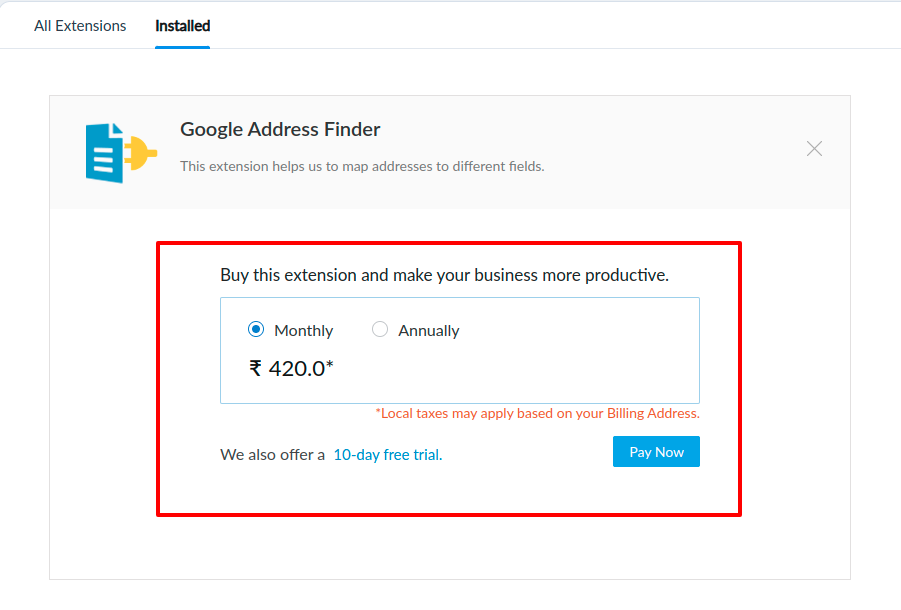
Then choose your subscription options.
Then click on “Pay Now.”
Step Four
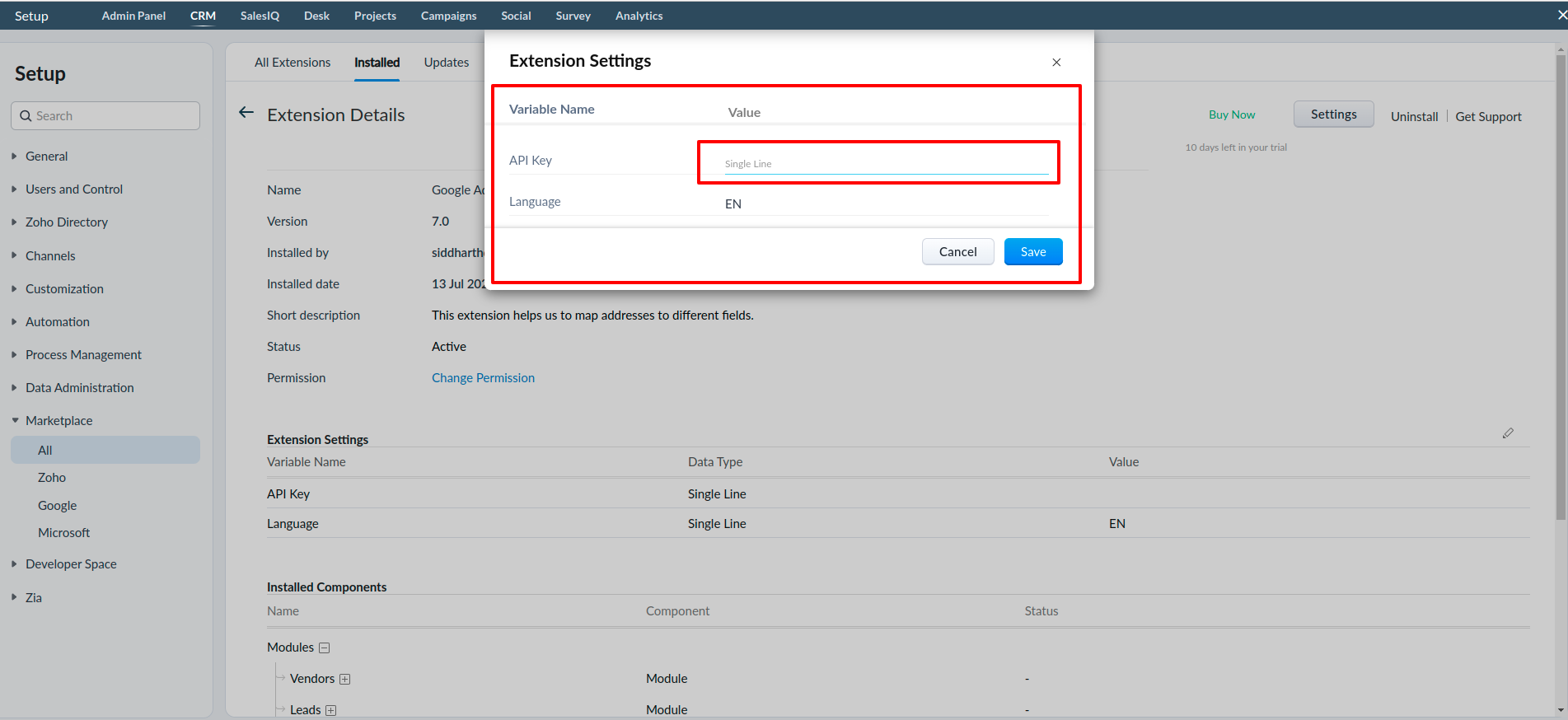
Insert your valid “Google API Key” and click on the “Save” button.
If you have any other questions we’ll be happy to answer them, simply send an email to zohomarketplace@fristinetech.com
Step Five
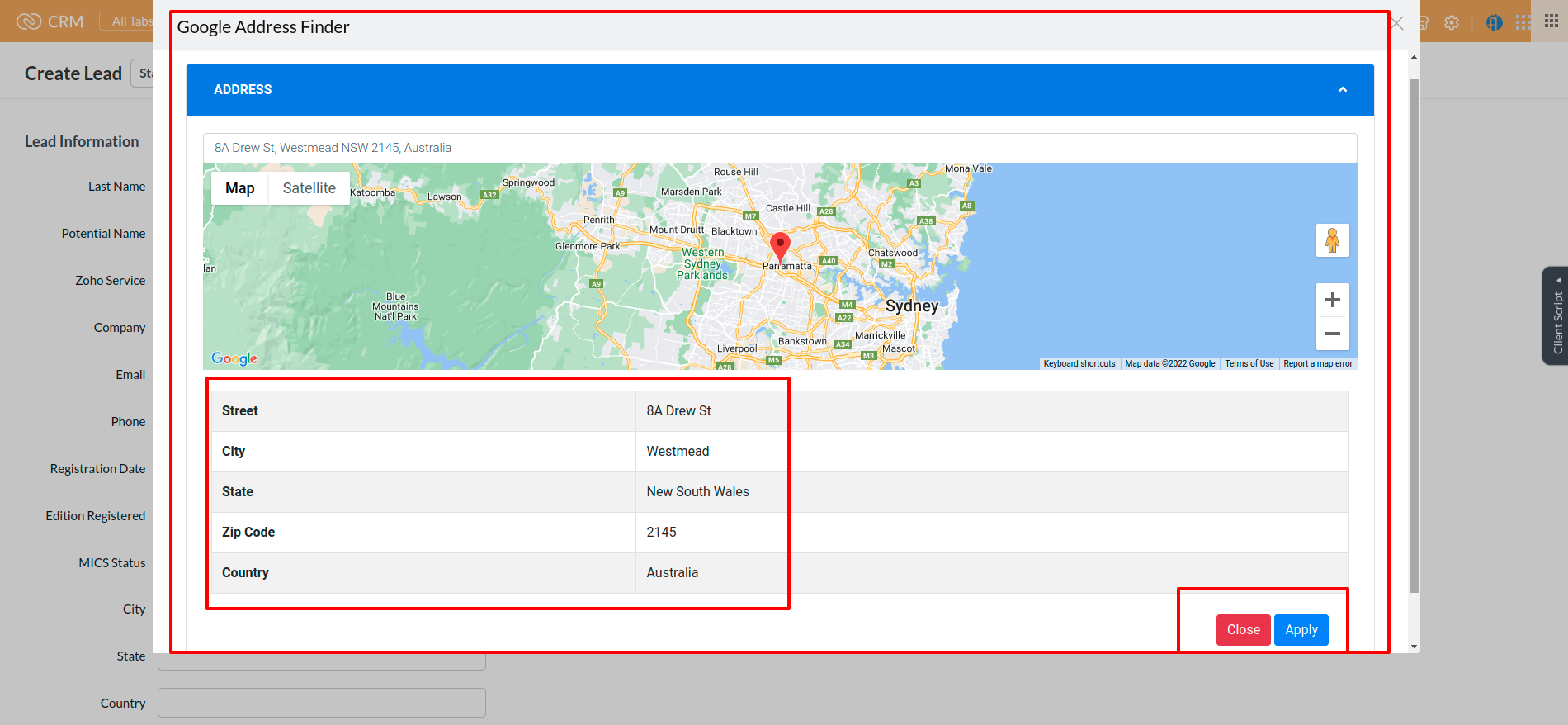
Go to Module Page and click on the Google Address Finder button on the top of the page. Then you can see the screen like below. You will get the location address and then hit “Apply”. After Click on Apply button, an address will auto populated on edit and create page.
If you have any other questions we’ll be happy to answer them, simply send an email to zohomarketplace@fristinetech.com