Zoho CRM customers can easily use this extension to connect their Stripe account and send payment links to customers from the Deals, Invoice, Quotation, and Sales Order modules. Extra features include mass triggering payment links from specific modules, sending payment reminders, canceling payment links, and enabling and disabling modules from the Settings page inside Zoho CRM.
Key Features:
- Send single or bulk payment links from the Deal, Quotation, Invoices, and Sales Order modules to collect customers' payments within Zoho CRM.
- Manage modules from the Extension Settings page to enable or disable Stripe Payment inside Zoho CRM.
- Cancel payment requests and links, and resend payment requests to customers in the Deals, Invoice, Quotation and Sales Order modules in Zoho CRM.
- Automatically update payment statuses from Stripe in Zoho CRM.
Installation Steps
Step One
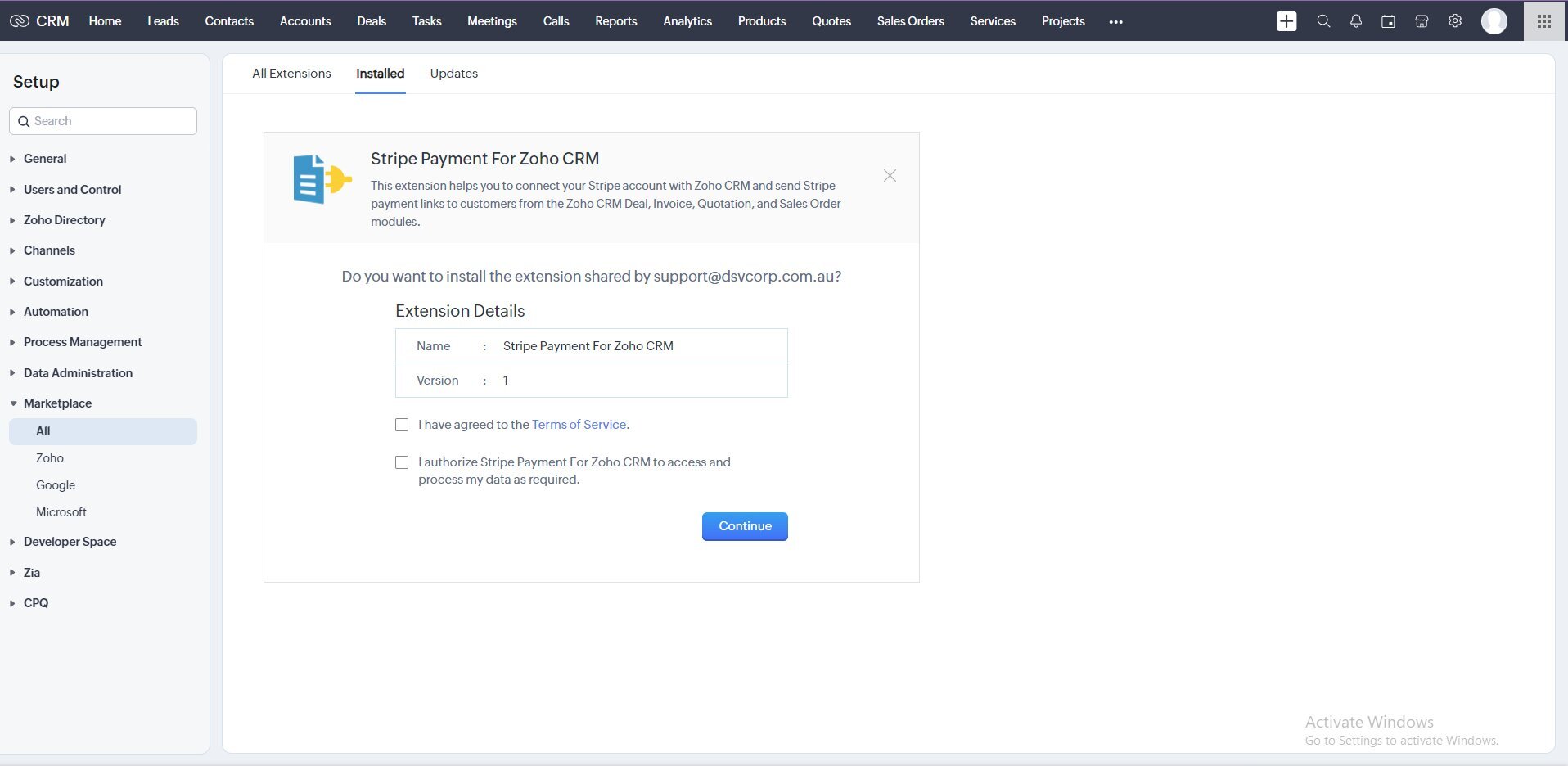
Open the installed “Stripe payment For Zoho Crm” extension, you will get two options-
- I have agreed to the terms of services
- I authorize Stripe payment to access and process my data as required.
Then click on “Continue.”
Step Two
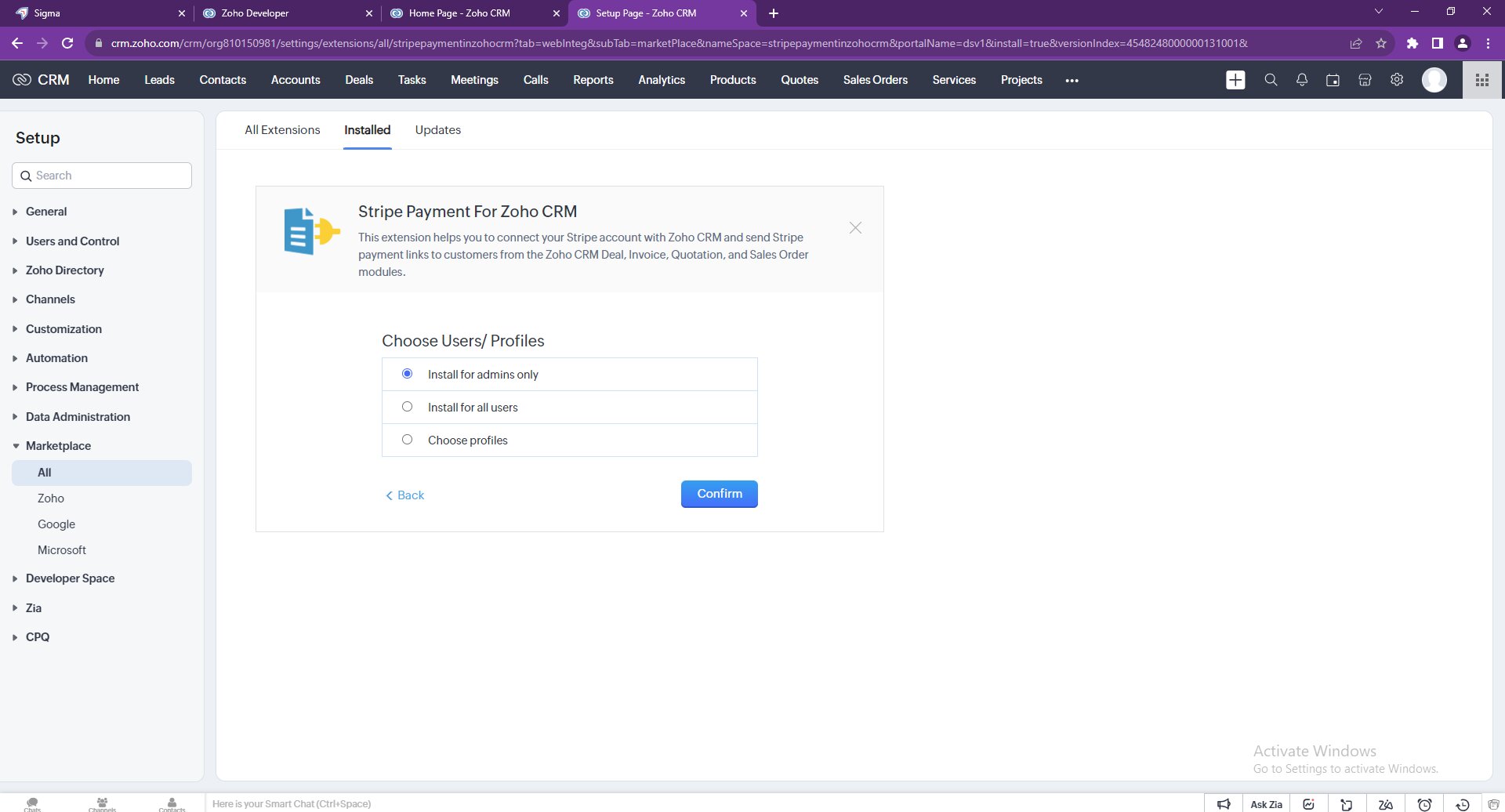
Next, you need to “Choose Users/Profiles.”
Select the appropriate option out of these three-
Then hit “Confirm.”
Step Three
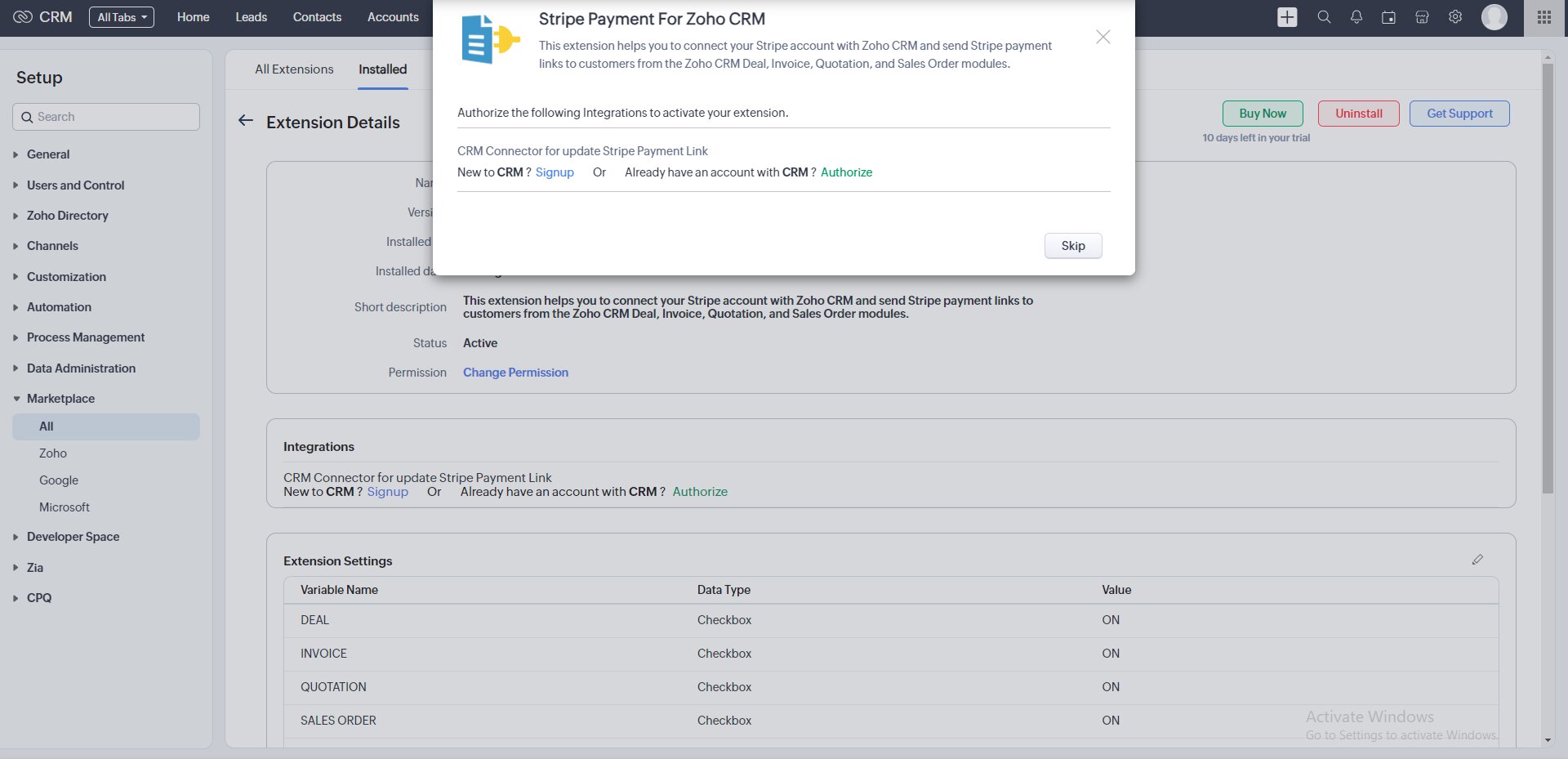
Your Stripe payment Extension was successfully installed. Authorize CRM Account before use.
Step Four
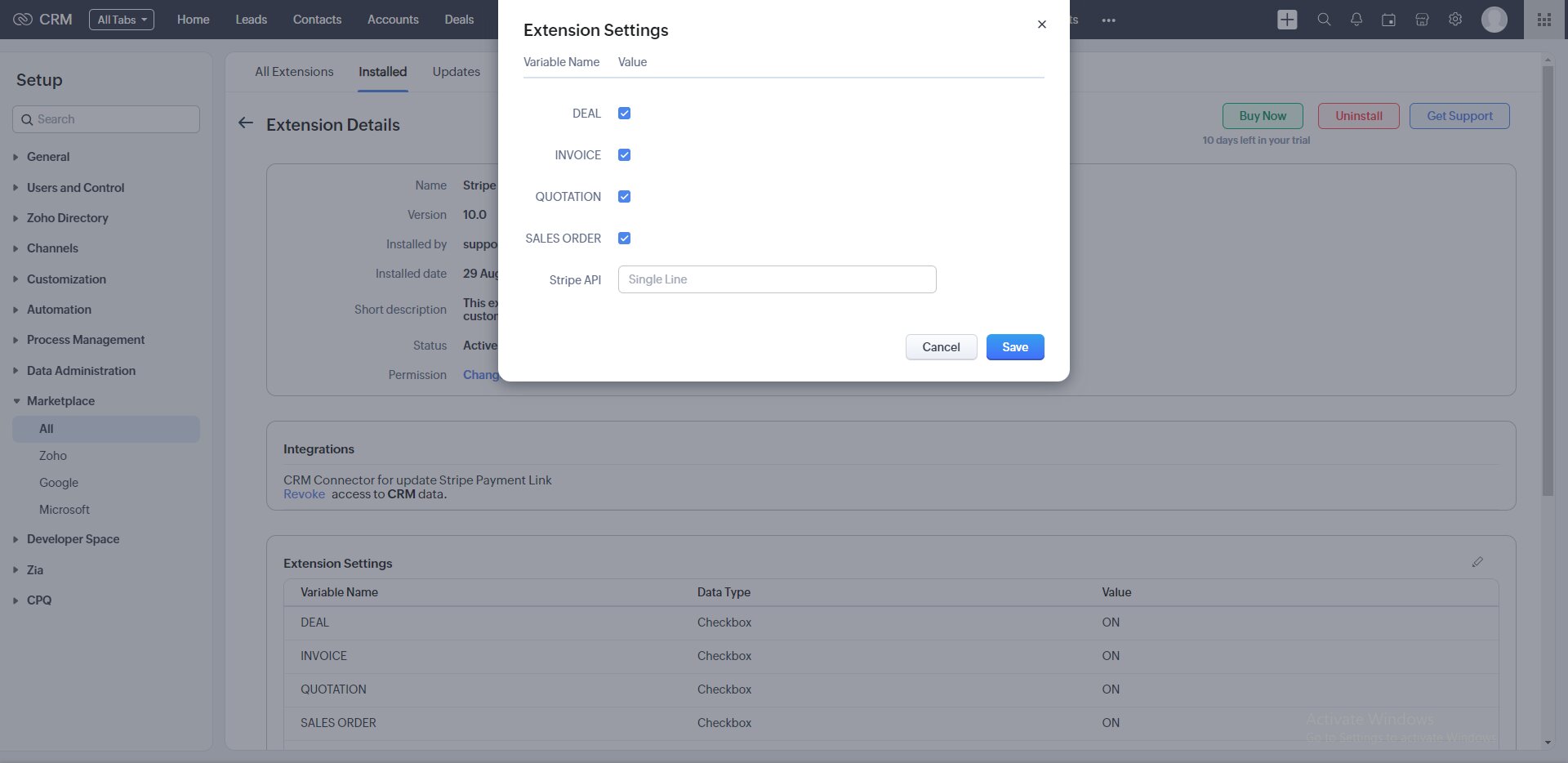
Insert your valid “Stripe API Key” and Permission to Show Payments Buttons Deal, Invoice, Quotation, And Sales Order boxes check and click on the “Save” button.
Step Five
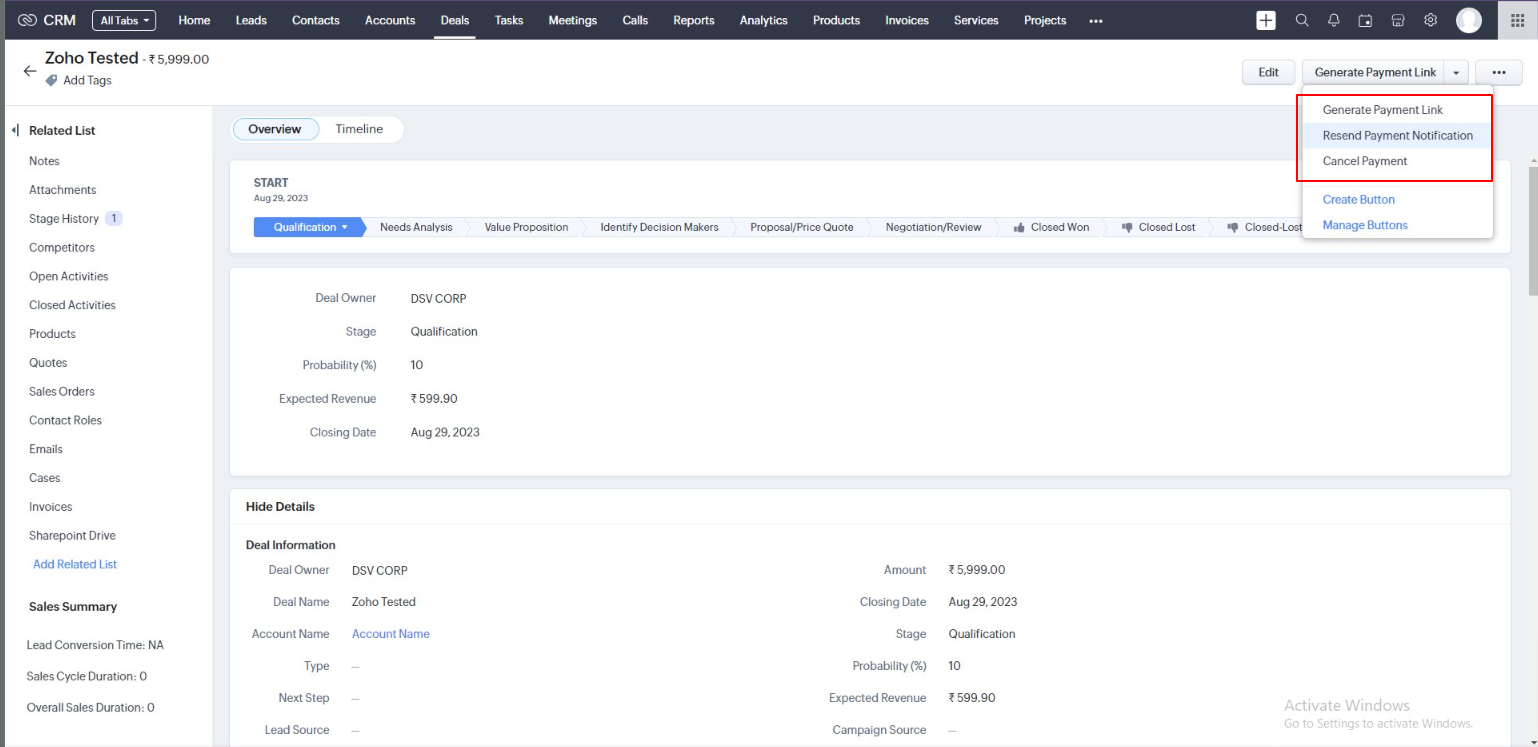
Your Payment buttons will be visible in the Deals, Invoices, Quotations, and Sales Orders Modules
Use Extension
Go to Deals, Invoices, Quotations, and Sales Orders Modules. On the View Page, we will see buttons – Generate Payment Link through which we can create a Payment Link if we click this button. If the customer forgets to pay, we can resend the payment notification link to the client with the help of the Resend Payment Notification Button. Whereas the Cancel Payment Button will help Disable the Payment Links if the client doesn’t want to make a payment.
If you have any other questions we’ll be happy to answer them, simply send an email to zohomarketplace@fristinetech.com