Visitor Tracking is a basic application available in Zoho Creator that helps companies track their visitors. Visitors can use the application to request a visit, and admins can confirm the request. Check-in and Check-out functionalities are available.
Key Features:
- Admins can track the total number of company visitors and their check-in and check-out time
- Admins can check the total visitors currently active in their building or branch.
- Employee check-in and check-out times are captured accurately.
- Dashboard tracks the total number of visitors and check-ins during the day, week, and month.
Installation Steps
- Users will be landed on the Dashboard once they have opened the Application.
.png)
- Users are able to view the visitor's status from the below highlighted area from the Dashboard.
.png)
Total Employee Check IN.
- Users will find the total number of times the employees visited.
Total Active Visitors
- Users will find the total number of visitors who are not checked out.
Total others Check IN
- Users will find the number of times the Other Visitors other than Employees visited.
Today’s Total Active Check IN
- Users will find the Total visitors who are checked IN today and not checked out.
Today's Total Check Out
- Users will find the Total Number of visitors checked Out today.
Today's Total Check IN
- Users will find the Total Number of Visitors Checked IN Today
- Users are able to view the Weekly and Monthly Check IN from the bar graphs Shown below in the Dashboard area.
.png)
Employee
- Click on Employee Master
.png)
- You will be taken to the Employee report.
-Click on the “Add a Record” to add new employees or click on the import button to add employees bulk.
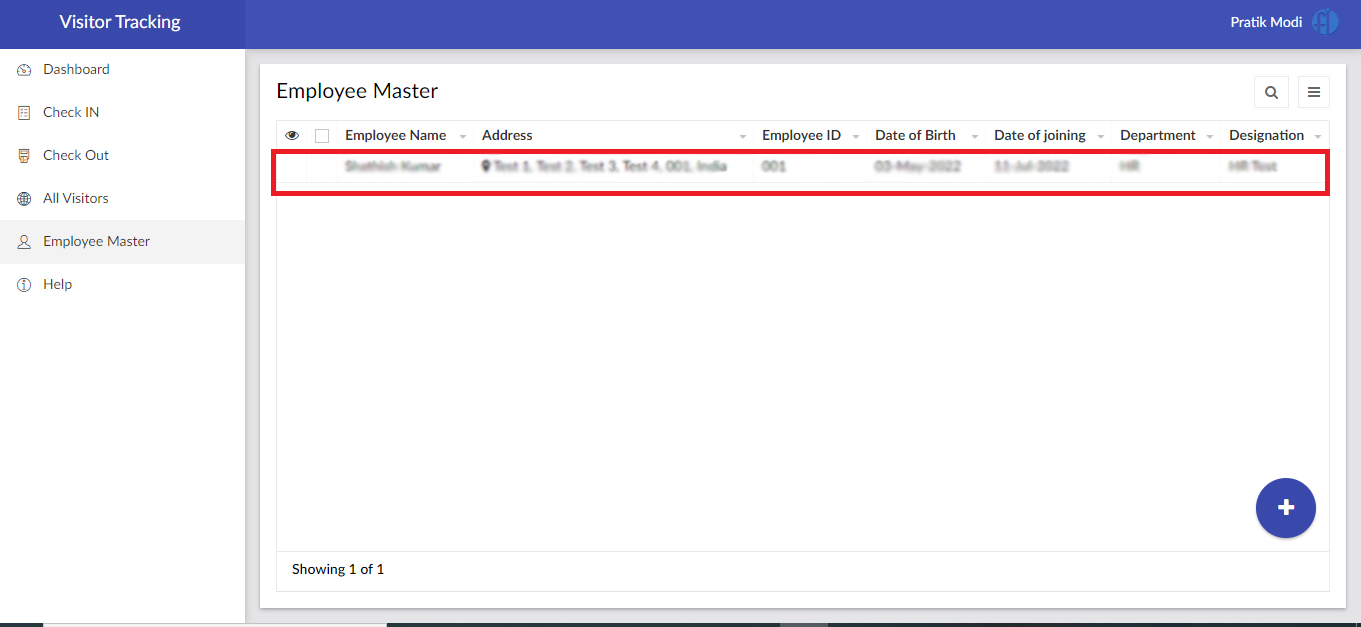
- The employee form will be opened.
.png)
- Add all necessary details and click on the “Submit” button.
.png)
- Employee records will be added
Check IN
- Click on the “Check IN”tab.
.png)
- Users will find the Employee Check IN and Others Check IN Options.
.png)
Employee Check IN
- Click on “Employee Check IN”.
.png)
- Employee Check IN form will be Opened
.png)
- Fill in the required information.
-Enter the Employee Email ID.
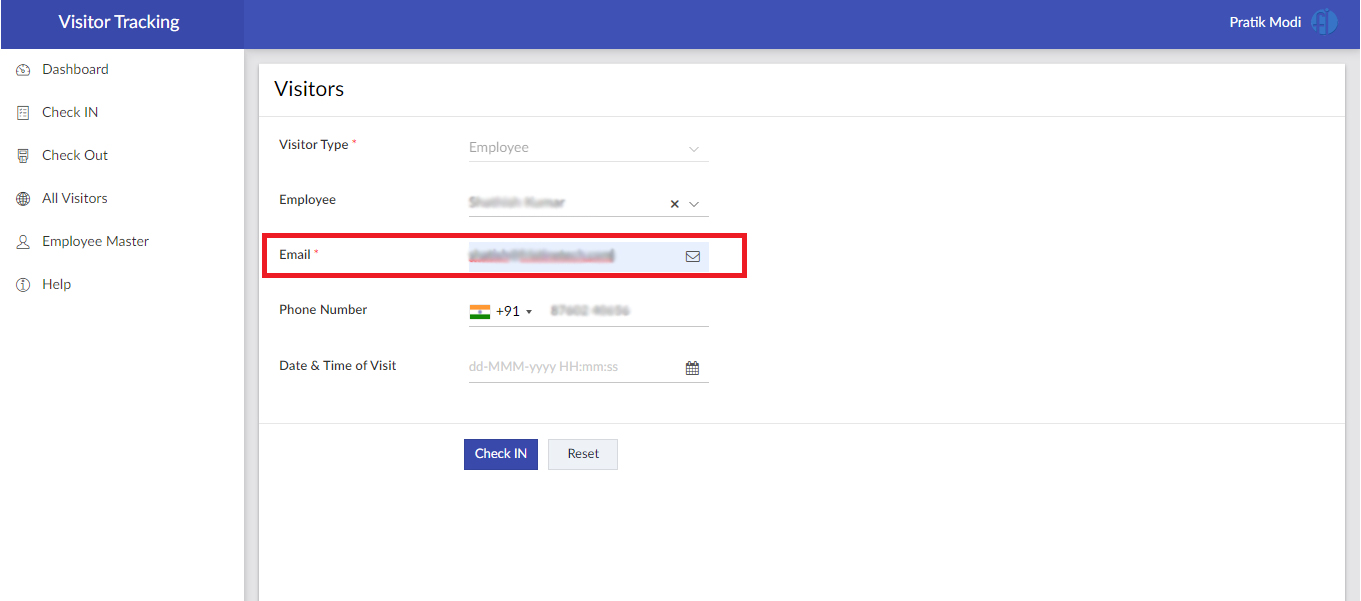
- Employee Name and Phone details will be auto-populated from the Master.
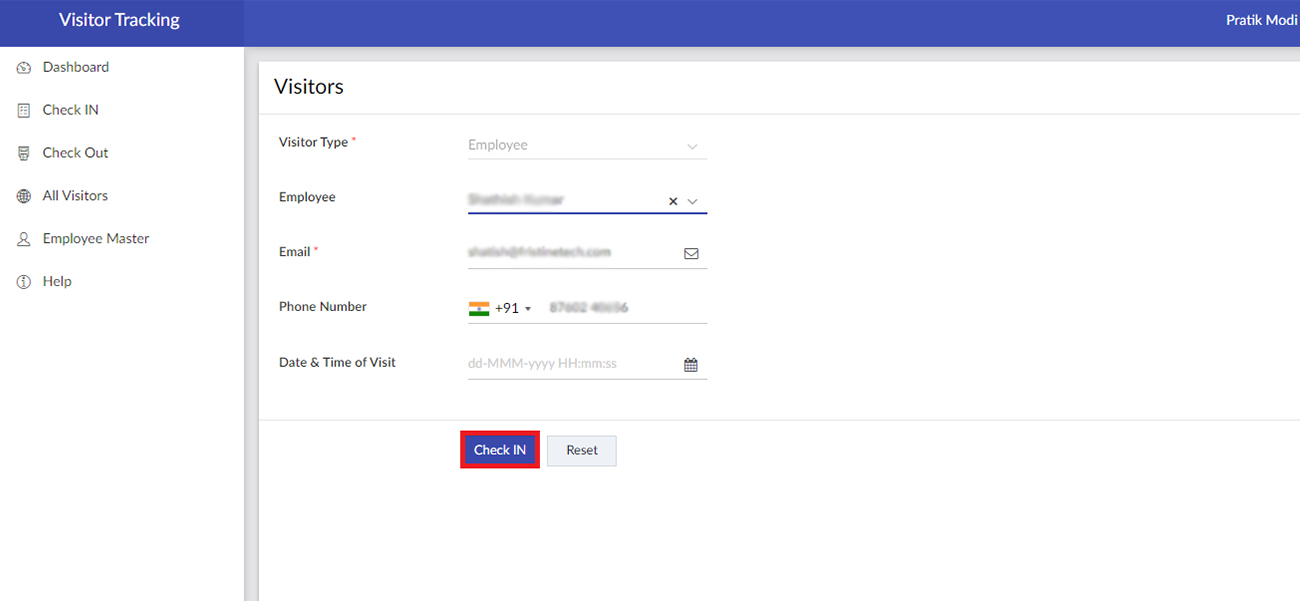
- Click on the “Check IN” button to Check IN.
Others Check IN
- Click on “Others Check IN”.
.png)
- Others Check IN form will be Opened
- Fill in the required information.
- Enter the Email ID.
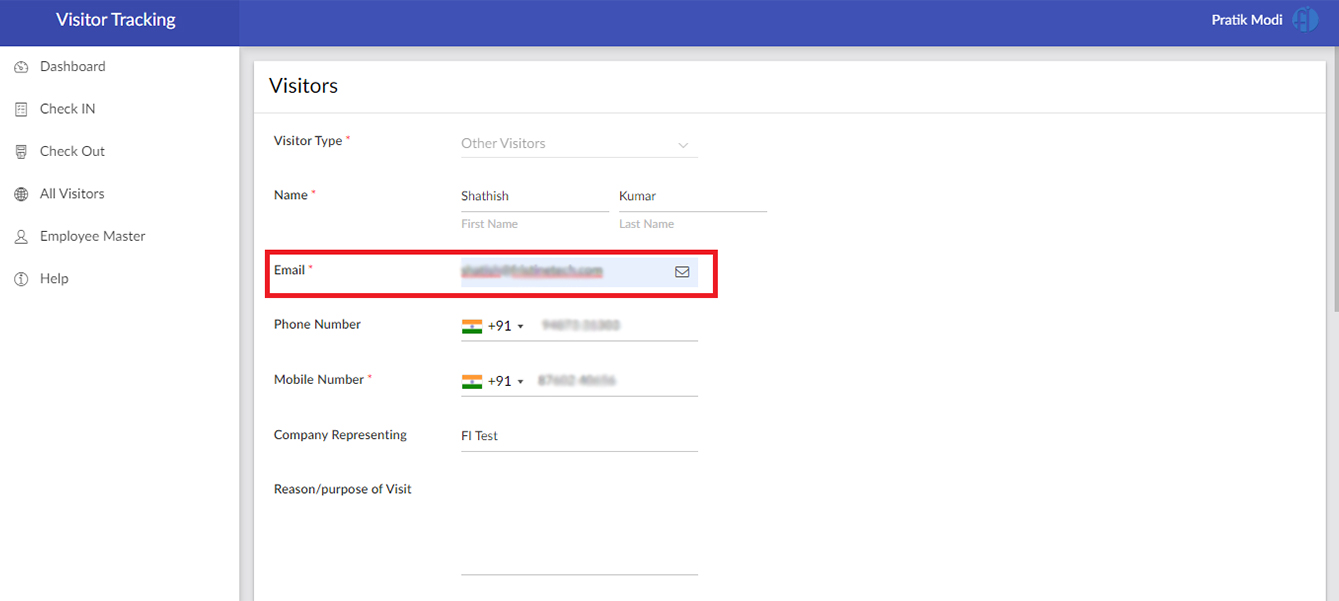
- Name, Address, Mobile, Phone, and other details will be auto-populated if the User with the same email ID is visiting for the second time.
-Click on the “Check IN” button to Check IN.
.png)
Check Out
- Click On the Check Out tab
.png)
- Users will find the Employee Check Out and Others Check Out Options.
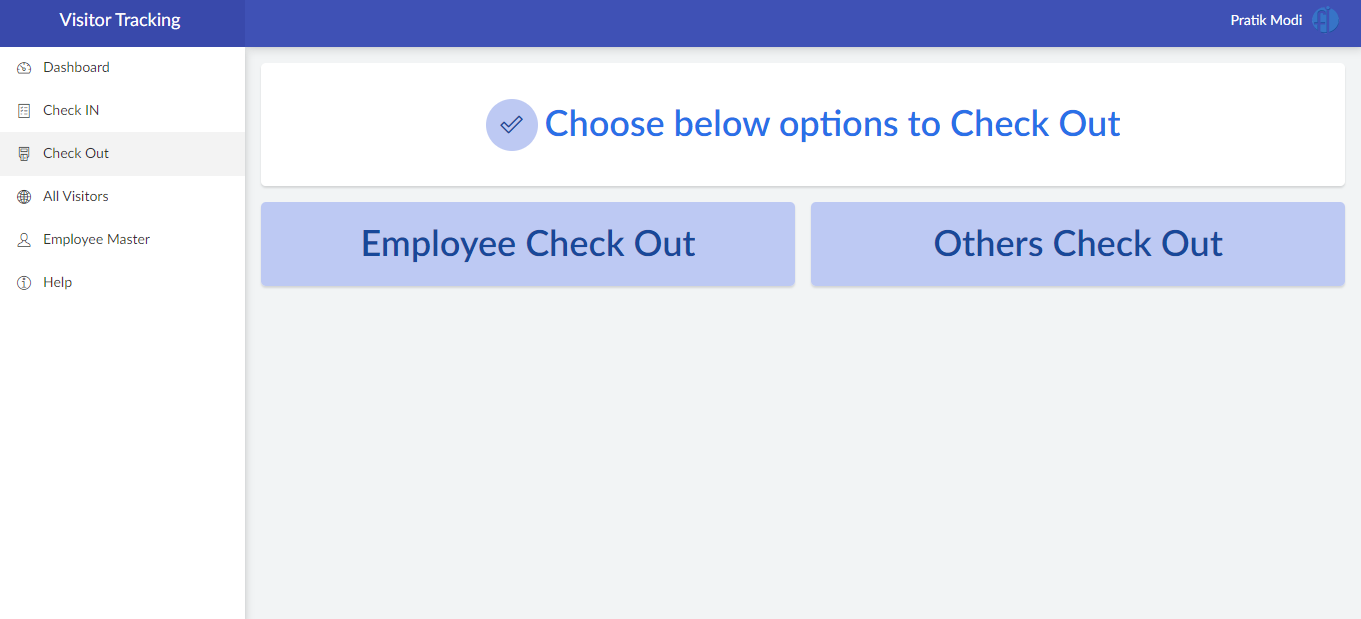
Employee Check Out
- Click on “Employee Check Out”.
.png)
- Users will be navigated to the Employee Check Out page.
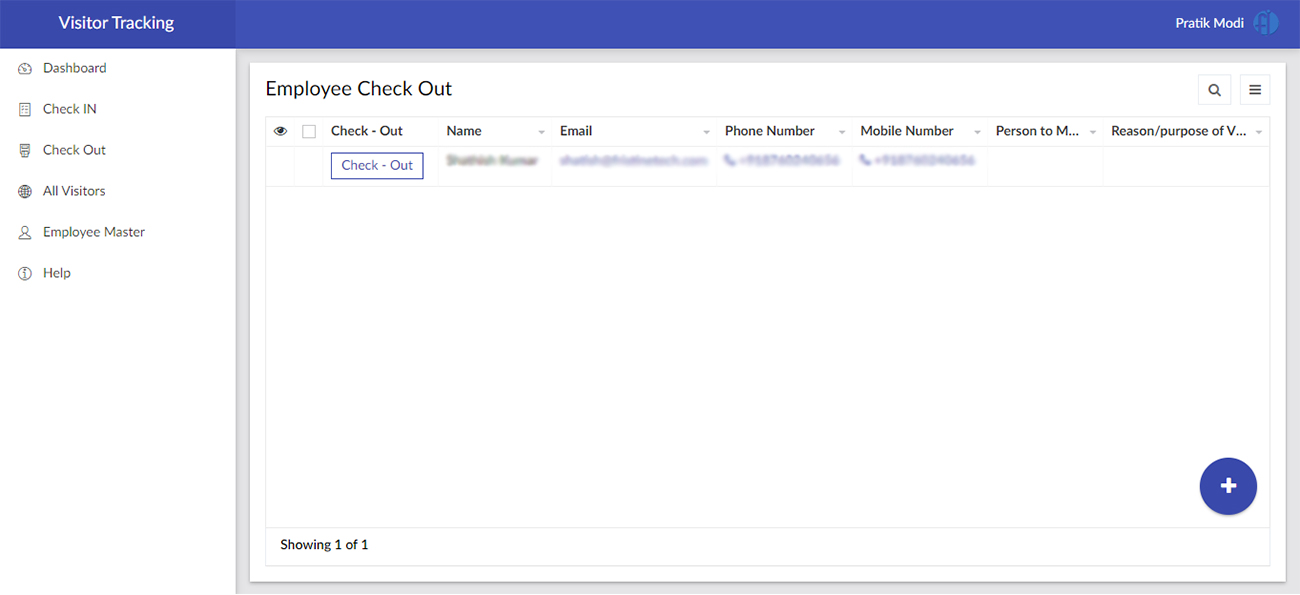
-User will find the list of Employees Check IN and Click on the “Check Out” button to check out.
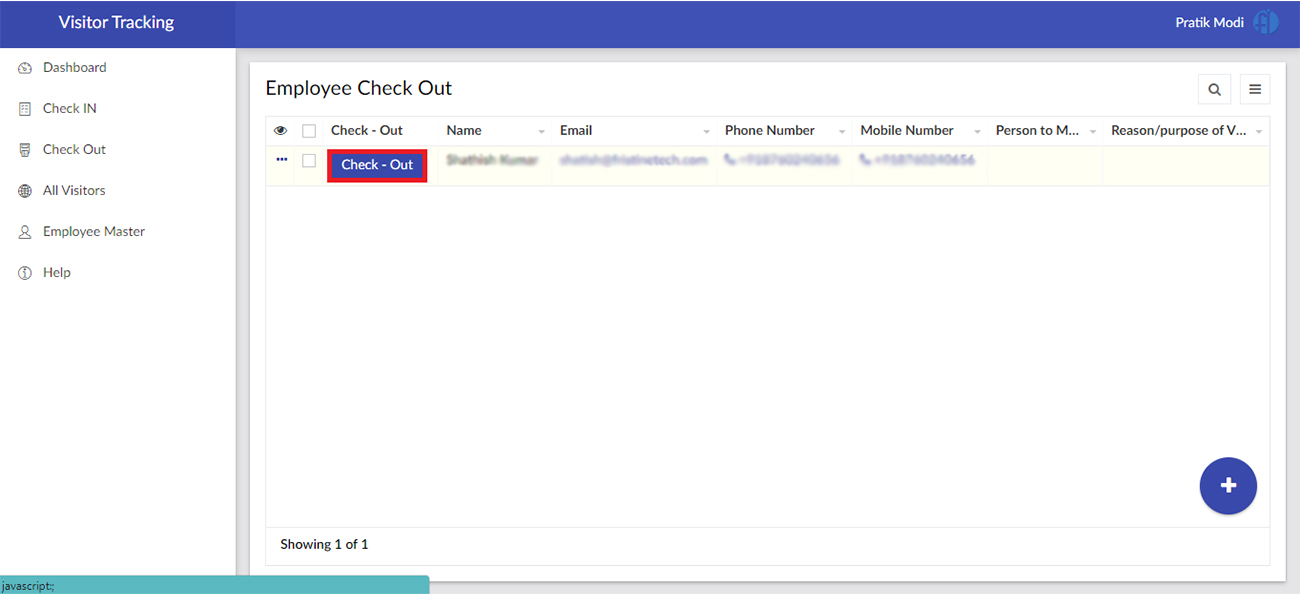
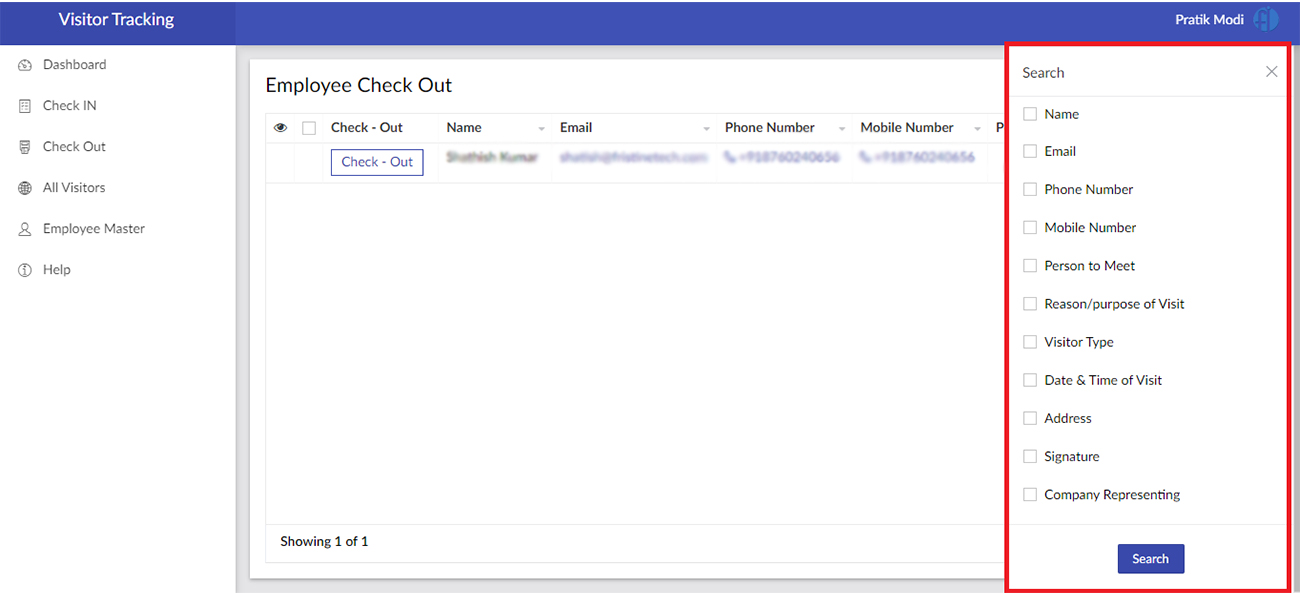
- Click on Search Icon highlighted below to add filters to search visitors.

-User will find multiple filter options based on form fields.
Others Check Out
- Click on “Others Check Out”.
.png)
- User will be navigated to the Others Check Out page
-User will find the list of Other Visitors who Checked IN and Click on the Check Out button to check out.

All Visitors
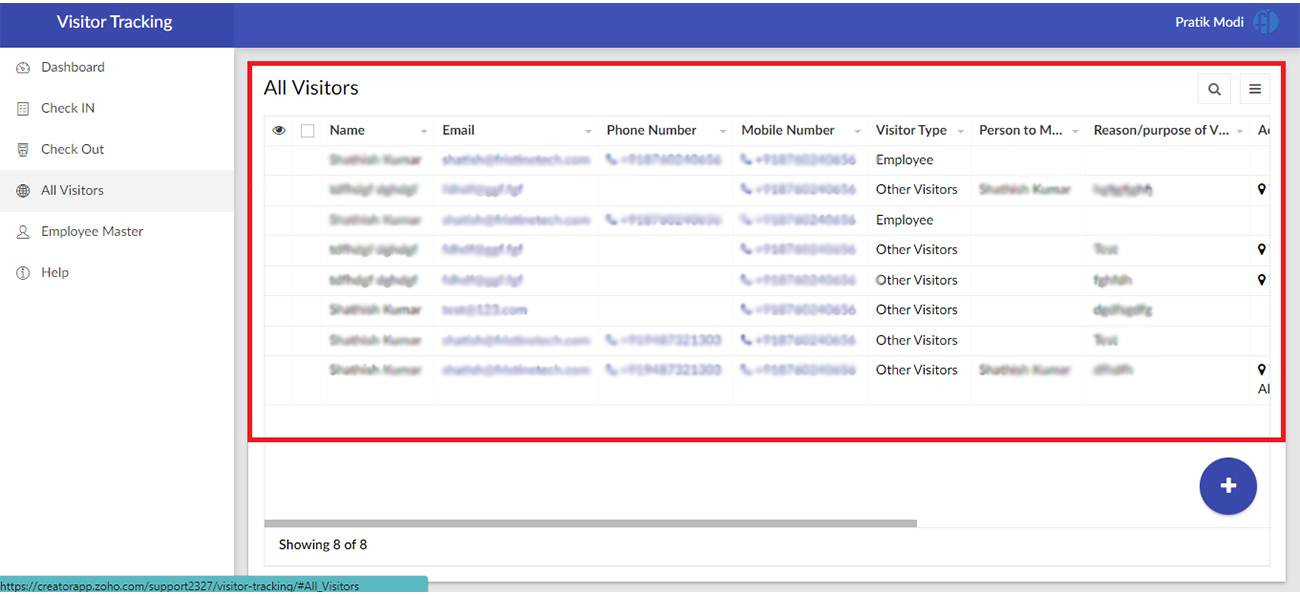
- Click on the “All Visitors” tab to view all visitors.
.png)
- Here User will find the details of all Visitors who visited their organization.
For any help or Enhancement please reach us via